
 Aging in Place Directory Hub
Short answer: These apps sit quietly on your parent’s smartphone and learn how they normally use it. If the phone goes silent much longer than usual, you get a text. Nothing to wear, nothing to press, nothing to charge. They work best for a parent who lives alone, uses a smartphone every day, and has already turned down a pendant. They are not a replacement for a monitored alert system. They notice trouble in hours, not seconds, and they call you instead of a dispatcher.
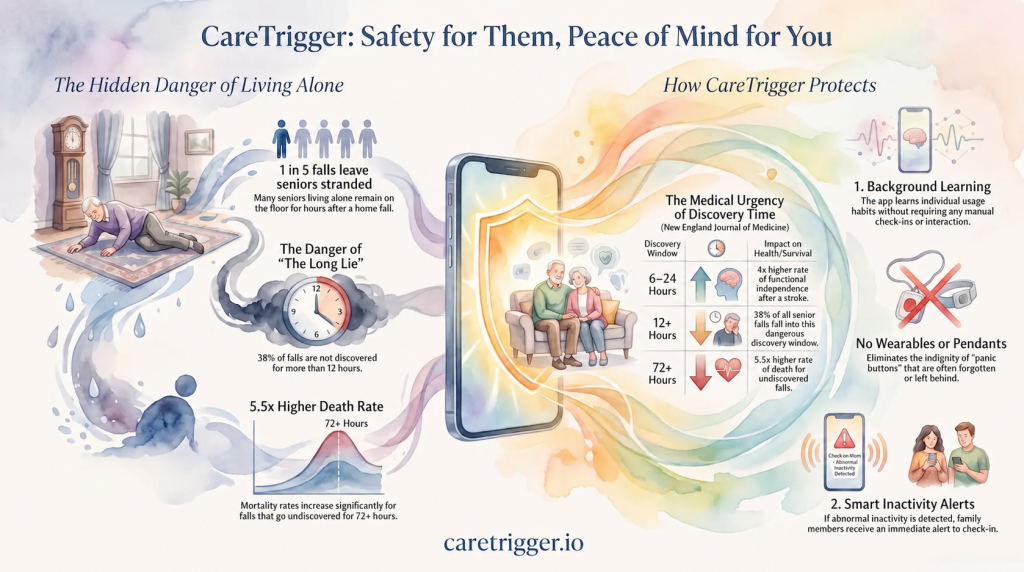
Most families find their way to this page after the same conversation.
You bought your mother a medical alert button. She said thank you. It has been in the kitchen drawer ever since, under the rubber bands and the church bulletin.
It is easy to read that as stubbornness. It usually is not. A pendant makes a statement, and the statement is I am not who I used to be. Your mother still drives herself to the grocery store and still hosts every holiday. She is not going to wear proof of decline around her neck to make her daughter feel better.
So families start hunting for something less obvious. That hunt tends to end up in the same place: apps that watch phone activity.
Here is how they work, when they help, and where they quietly fall short.
How phone activity monitoring works
Your parent already carries a phone. They unlock it in the morning, check the forecast, text back their grandson, take a picture of the tomatoes. That rhythm is data.
A monitoring app runs in the background and spends a few weeks learning that rhythm. Not the rhythm of older adults in general. Theirs. It learns that your father is usually awake by seven, that his phone goes quiet every Tuesday during cards, that he almost never picks it up after nine at night.
Then it waits for that pattern to break in a way it has not broken before. If the phone sits untouched far past normal, your phone buzzes.
Your parent does nothing at all. No button, no bracelet, no daily task. That is the whole appeal of these apps, and it is a fair one.
Three different products, one confusing label
“Senior safety app” gets stuck on products that behave nothing alike. Knowing which type you are looking at matters more than comparing feature lists.
Passive activity monitoring. The phone watches itself and asks nothing of your parent. CareTrigger and Parents Are OK work this way. This is the category most of this article covers.
Daily check-in. Your parent taps once a day to confirm they are fine. Miss the tap and your family gets a notice. Snug Safety is the best known. Whether a daily tap feels like a comforting routine or one more thing to nag about depends entirely on your parent.
Sensor-based tracking. The app uses the phone’s motion sensors and GPS for fall detection, location, or geofencing. These want much deeper access, and they produce many more false alarms.
Some apps mix all three. Read the description closely before you assume you know what you installed.
The real problem these apps are built for
The point is not catching the fall. The point is catching what comes after it.
Researchers use the phrase “long lie” for what happens when an older adult falls, cannot get up, and stays on the floor. Studies of older adults living at home have found that a large share of those who cannot get up stay down for an hour or more, and some stay there overnight.
The time on the floor becomes its own emergency. Hours without help can mean dehydration, pressure sores, muscle breakdown, low body temperature, and pneumonia. People found quickly do far better than people found the next morning. Stroke works on the same clock, since treatment windows are measured in hours.
So there are two problems here. Your father falling is the first one. Your father lying in the hallway until someone thinks to check on Thursday is the bigger one. These apps aim at the second problem only.
That is worth something. It is also a narrower promise than most sales pages suggest.
When one of these apps is a good fit
Be honest about whether your parent matches this picture. All of it should be true.
- They use a smartphone daily. Not own one. Use one. A phone that lives in a purse and gets checked twice a week gives the app almost nothing to learn from.
- They keep it charged and nearby. This is where these apps fail most often.
- They live alone. If anyone else is in the house every day, that person is a better safety net than software.
- They have already refused a wearable. If your mother would wear a pendant or a smartwatch, use that instead. Do not trade a stronger tool for a weaker one.
- Someone nearby can respond. The alert goes to family, not to a call center. If you live four states away and no one local is on the list, all you have bought yourself is worry with a time stamp.
- Their fall risk is low to moderate. A parent who has already gone down twice this year needs more than an app.
If that describes your parent, this is worth trying. Several of these apps are free, so finding out costs you almost nothing.
When it is the wrong tool
Your parent has dementia. This is the one to take seriously. Someone with memory loss may stop using their phone for reasons that have nothing to do with an emergency, or keep using it normally on a day when they are in real trouble. The bigger danger is that the app makes you feel settled on the day you should have driven over. Dementia calls for different tools and a lot more in-person contact.
Your parent has a flip phone or no phone. There is no way around this. Look instead at check-in services that call a landline.
Your parent has a high fall risk. If your mother has fallen in the past year, uses a walker, takes blood thinners, or gets dizzy standing up, she needs help arriving in ninety seconds, not an alert six hours later. That means a monitored medical alert system with automatic fall detection.
Your parent has not agreed to it. Putting monitoring software on another adult’s phone in secret is a betrayal, and it will cost you more than the safety is worth. More on that below.
What is available right now
A plain snapshot. These are not endorsements, and we have not tested them.
CareTrigger (caretrigger.io). Free for personal use on iPhone and Android. Passive monitoring with a learned baseline. In-app purchases work more like a tip jar than a paywall.
Parents Are OK (parentsareok.app). Passive monitoring built on a fixed 24 hour window of inactivity rather than a learned pattern. Advertises that it does not use GPS, camera, or microphone.
Snug Safety (snugsafe.com). The established daily check-in service. The free tier gives one check-in a day with text alerts to your contacts. The paid Dispatch plan, currently $19.99 a month or $149.99 a year, adds a live dispatcher who follows up on a missed check-in. Your parent has to tap every day.
What the phone already does. Before paying anyone, look at the settings. iPhone and Android both include emergency SOS, a medical ID, and location sharing for free. An Apple Watch adds true fall detection that can call 911 on its own, which is stronger than anything on this list, if your parent will wear a watch.
The limits that do not appear on the sales page
It takes hours, not seconds. The app has to wait long enough to be sure the silence is unusual. In practice that often means six hours or more. A monitored pendant gets help moving in about a minute. These are not competing products.
The alert lands on you. No dispatcher, no 911, no welfare check. If you are asleep or in a meeting, the alert waits until you see it.
A phone left on the counter looks like an emergency. Your mother spends the afternoon in the garden without her phone, and the software cannot tell the difference. False alarms happen, and the real risk is that you start ignoring them. Apps that learn a personal pattern handle this better than apps using a fixed timer, but none of them handle it perfectly.
A dead battery ends the monitoring. No charge means no data. Better apps flag a dead battery as its own status instead of treating it like an emergency, but the protection is still gone until the phone is plugged back in.
Bathrooms are the blind spot. A large share of falls at home happen in the bathroom, which is exactly where phones tend not to be.
None of these are medical devices. Every honest company in this category says so in its own terms, and they are right to. They promise no guarantee of detecting anything.
Read the privacy policy, not the privacy promise
This part takes ten minutes, and it is worth doing.
Marketing pages in this category lean hard on privacy language. No camera. No microphone. We only know that your mother is active, never what she is doing. That is reassuring, and it is often what convinces a hesitant parent to say yes.
Then open the actual privacy policy and see if the two documents agree.
Policies in this category have listed precise GPS collection, location estimated from Wi-Fi and Bluetooth, motion sensor data, step counts, and in one case a remote access feature that could stream live audio or video, all on a product whose home page promised no cameras and no microphones.
Sometimes that is a lawyer writing broadly to cover future plans. Sometimes it is not. From the outside you cannot tell, which is the problem.
Four things to check before you install anything:
- Does the policy list data the marketing page says is not collected?
- Can you delete the account and the data, and does the company say how?
- Who owns the company and where are they based? Check the app store listing, not the website.
- What happens to the data if the company is sold?
If a company’s own two pages contradict each other, that tells you something about how carefully your mother’s information is being handled.
How to bring it up
Do not install this quietly and hope nobody notices.
How you say it matters more than what you install. This is not “I need to keep an eye on you.” It is closer to: “I want to stop calling you three times a day. If I can see you are up and moving, I can leave you be.”
That version is true, and it is the one that usually gets a yes. Plenty of older adults mind being interrupted far more than they mind being monitored. An app that replaces four check-in calls with one glance can hand your parent more independence, not less.
Tell them plainly what you will see, which is that they are active, not what they are doing. Show them the screen. Tell them they can delete it any time, and mean it.
Then keep your end of it. If you install the app and keep calling three times a day anyway, you took something and gave nothing back.
Where this belongs in a real plan
Here is the honest placement from an occupational therapy point of view. A phone monitoring app is a backstop, not a plan.
It prevents nothing. All it does is shorten the wait until someone finds out. Real proaction is the work that keeps the fall from happening in the first place.
Before you install anything, do the things that move the needle. A professional home safety assessment. Grab bars where they are actually needed. Better lighting on the stairs and in the hallway at night. Throw rugs gone. A medication review for anything causing dizziness. An eye exam. A balance and strength program.
That work is less exciting than downloading an app, and it protects your parent far more. It is also where a qualified professional earns their fee. A CAPS certified specialist, an occupational therapist, or an aging in place contractor will spot hazards in twenty minutes that a family walks past every day. You can [search this directory for professionals near your parent](LINK: directory search page).
Once that groundwork is done, and if your parent lives alone and still will not wear anything, add passive phone monitoring as one more layer. It is free or close to it, it asks nothing of them, and on the worst day it might save six hours.
Just do not let it buy you false comfort on all the other days.
Common questions
Will it work on an older phone? Usually, within limits. Most of these apps need a fairly current operating system, often iOS 16 or newer on iPhone. Check the app store listing before you promise your parent anything.
Will it drain the battery? Background monitoring uses some power. Most of these apps are built to be light, but watch the first week and ask your parent directly. A parent who blames the app for a dying phone will delete it.
Can more than one of us get alerts? Most apps allow several contacts, and you should set that up. Sharing alerts among siblings means no single person carries the whole worry, and someone is more likely to be reachable.
Is the free version good enough? For this one job, noticing unusual silence, free is often plenty. Paying more buys you a live dispatcher, professional monitoring, or hardware. If a dispatcher is what you need, buy a dispatcher. Do not pay app prices and expect one.
Should I get this instead of a medical alert system? No. If your parent will accept a medical alert system, that is the better tool. Consider an app when they have refused, or as an extra layer next to one.
The bottom line
These apps do one narrow thing. They shorten the gap between something going wrong and somebody knowing about it. For a parent who lives alone, uses a phone every day, and has said no to every device you have offered, that is worth having, especially for free.
They will not summon help. They will miss things. They will occasionally scare you over a phone left in the garden.
Install one with your parent’s agreement and clear expectations, and it is a sensible layer. Install one thinking the problem is handled, and it becomes the most dangerous thing in the house, because it lets you stop worrying about a risk that has not gone anywhere.
